1 - Your word processor inherits every file you own
Malware encrypts your files with the same open() your editor uses. HJFS keeps custody with you, not with the program you ran.
Prototype: Content on this page reflects current design intent and will be updated as the product matures.
Overview: When you run a program, the OS grants it every file you can reach. A word processor and ransomware running as the same user have the same access.
HeartSuite Joint File System (HJFS) stops a program from inheriting everything you can reach: each program gets only its own files, isolated per program and per version, including programs running as root.
The root cause
Operating systems grant file permissions to users, not to programs, and that is still the default. As a result, a word processor and a ransomware process running as the same user have identical access to every file that user owns.
Ransomware opens your files using the same system call as any legitimate program, reads them, encrypts them, and overwrites the originals. Backup can only restore a snapshot taken before the damage, and detection reacts after access was already granted, and only to attacks it already recognizes.
What HJFS changes
HJFS replaces user-based file permissions with program-based file permissions, enforced inside the filesystem. Each program has its own storage area. No other program can read or write those files, including programs running as root.
Which programs run and which network connections they open stay with Root Lock by HeartSuite. On a Root Lock kernel, HJFS and Root Lock can share the host. See Protection limits.
2 - Each program gets its own storage area
HJFS confines programs to their own files. The OS default — every program inherits your documents — is the hole this closes.
Prototype: Content on this page reflects current design intent and will be updated as the product matures.
Overview: On a standard Linux system, any program can open any file you can reach, including programs running as root. HeartSuite Joint File System (HJFS) binds data files to the program version that created them, so no other program can read or write those files, regardless of privilege. Which programs run and which network connections they open stay with Root Lock by HeartSuite. See The security problem HJFS solves.
File isolation in practice
A program can reach only the files in its own storage area, and that boundary holds even for programs running as root. Malware already present on the system therefore cannot read, modify, or encrypt files that belong to another program: the filesystem’s open() call refuses the attempt before it reaches the data.
Technical implementation
HJFS moves file access enforcement out of the kernel’s user-permission model and into the filesystem itself. It consists of three parts:
- Additional code integrated into the filesystem’s
open() call — the function the OS invokes whenever a program opens a file. Access policy is enforced at that point. - Tools for installing and updating programs into the HJFS structure.
- A version selector that determines which program version is active when a program starts.
Executables are stored in a separate area, which the open() modification makes read-only for every program except the official HJFS installer. Programs therefore cannot modify or replace their own binaries.
Because HJFS operates entirely within the filesystem layer, a standard kernel is sufficient.
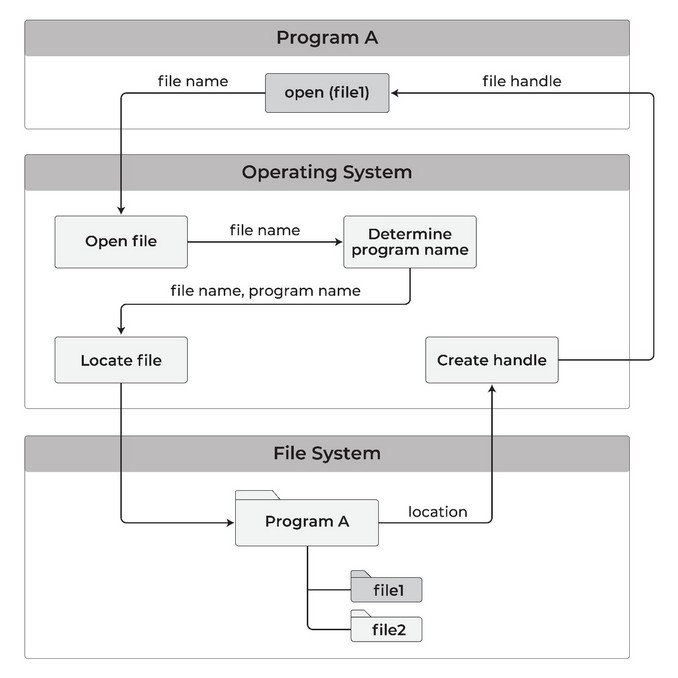
When a program opens a file, the modified open() call routes the request to that program’s isolated storage area:
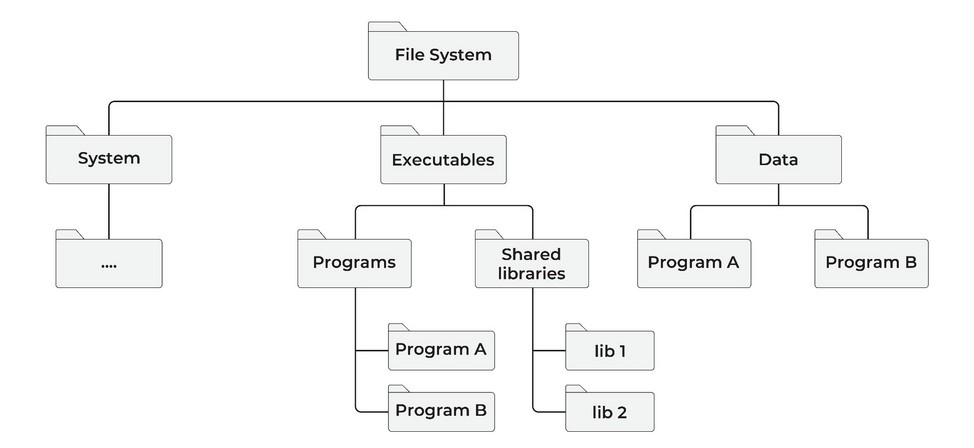
The restructured filesystem separates system files, executables, and per-program data into distinct top-level areas:
Per-version storage
HJFS enforces isolation at the version level, not just the program level. Each installed version of a program receives its own dedicated storage area.
HJFS trusts a program only with the storage area that version created. Storage areas belonging to other programs — or to other versions of the same program — are outside that trust boundary, even when the program runs as root.
HJFS identifies a version by a hash of the executable and its libraries, so a change to a single library makes a new version. Utilities show a human-readable install-time identifier (for example, 260208_123022P), but the hash is what HJFS enforces.
When a program opens a versioned file, the open() call resolves both the program name and the version hash before locating the file:
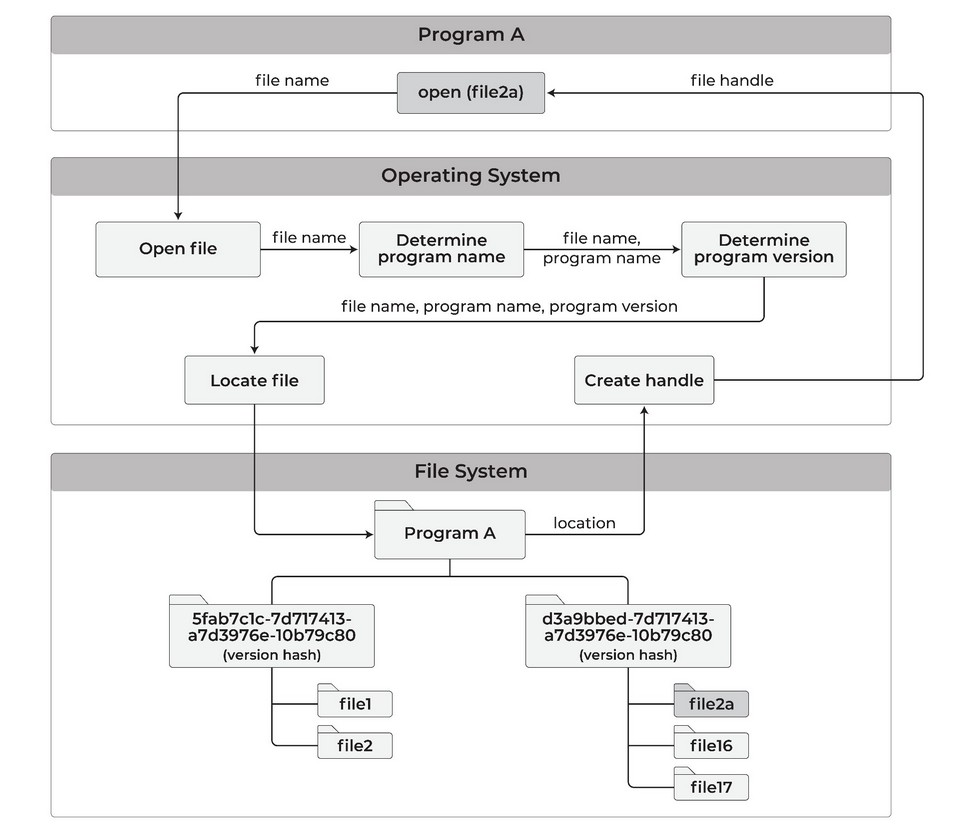
This means:
- When a program is updated, the new version gets its own storage area. The previous version’s binary, libraries, and data files remain intact.
- A malicious update cannot reach or destroy files created by earlier versions.
- Users can roll back to any previous version and read the original files exactly as they were.
Secure file transfer between programs
Because each program is confined to its own storage area, moving data between programs requires explicit user action:
- Copy utility: Copies a file from one program’s storage area directly to another’s. Every transfer is an explicit, auditable operation.
- Transfer area: A neutral staging location where a file can be deposited once and made available for other programs to read and copy to their own areas. Programs can read from the transfer area but cannot write to other programs’ areas directly.
- Clipboard: Copy and paste between programs requires your action, so a program cannot move data through the clipboard on its own.
Programs can only move a file to trash, never delete it permanently. A separate utility shows trash contents and permanently deletes selected files after you confirm.
Version management
HJFS_update_program installs a new version. HJFS_version_manager lists installed versions, shows the active one, and sets it. The Walkthrough runs those commands.
Version rollback
Because each version has its own storage area, rolling back is non-destructive. Setting the active version to a prior release makes the original files immediately accessible — no restore process, no backup retrieval. Prior executables, libraries, and data files remain untouched in their own subareas.
Data files created under the version you roll back from exist only in that version’s storage area. The file transfer utility can copy them to the target version before or after rollback.
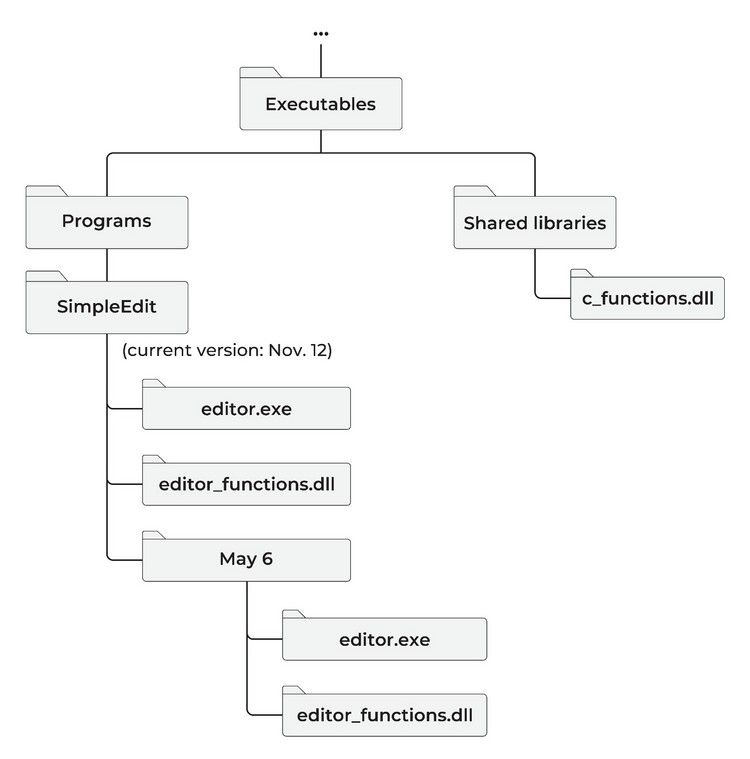
The example below shows a program called SimpleEdit after an update on November 12. The May 6 version is preserved in its own subarea; the installer stores the prior executables before overwriting the current ones:
Automatic data file backup
HJFS automatically backs up every version of every data file to a protected storage area. No program can reach that area — including programs running as root. A restore utility shows every version of a file and restores any of them.
This is distinct from program version rollback. Program version rollback restores a prior executable and its libraries. Data file backup maintains version history of the data files themselves, independent of which program version created them.
HJFS automatic backup differs from Root Lock’s backup mechanism in two ways. Root Lock backs up admin-configured directories on every write — an administrator selects which directories are protected. HJFS backup requires no configuration: every data file written by any program is backed up automatically by the filesystem, covering every program’s storage area from first use.
The malicious sleeper attack
Program version isolation leaves a window, because a malicious update can behave as expected for months before it activates. During that time, new data files accumulate inside the malicious version’s storage area, and rolling back the program version leaves them where they were written: they were never in the prior version’s area.
How the backup defeats it
HJFS copies every write to a protected area no program can open, including programs running as root. Ransomware targets backups first because intact backups remove the leverage of encryption, and HJFS removes that option at the same open() boundary that isolates program storage.
When the attack activates:
- Stop the malicious program.
- Restore every data file to the version that existed before the attack.
- Copy those restored files to the prior legitimate program version’s storage area.
- Roll back the program version to the legitimate one.
Every file created before the attack is recoverable. Loss is limited to files written during the active attack, not the months the sleeper was dormant. See Attack examples for the XZ pattern.
Security guarantees
HJFS trusts each program only with the storage area that program version created. Root access stays inside the same storage area: privilege level does not expand what a program can open.
The trust boundary is enforced at the filesystem layer, below all running software. The only path around it is physical: removing the HJFS drive bypasses the enforcement entirely.
Patents
HJFS is based on innovations patented by HeartSuite:
| Patent | Title | Issued |
|---|
| US 11,822,699 B1 | Preventing Surreptitious Access to File Data by Malware | November 21, 2023 |
| US 11,983,288 B1 | Operating System Enhancements to Prevent Surreptitious Access to User Data Files | May 14, 2024 |
HJFS and Root Lock: what each covers
On a Root Lock kernel, HJFS and Root Lock can share the host. HJFS also runs on a standard unmodified kernel.
| Root Lock | HJFS |
|---|
| Enforcement layer | Kernel | Filesystem (open() call) |
| Kernel requirement | Modified Root Lock kernel | Standard kernel |
| Program execution control | Yes | No |
| Filesystem path control | Yes | Yes |
| Network access control | Yes | Planned |
| Per-program-version file isolation | No | Yes |
| Audited cross-program file transfer | No | Yes |
See How HJFS compares for when to run HJFS alone and when to run it beside Root Lock.
Status
HJFS is a prototype. Capabilities, configuration, and deployment details are subject to change.
3 - Where the file isolation boundary holds
Where HJFS file isolation holds, where a program can still hurt you inside its own area, and what to run alongside it.
Prototype: Content on this page reflects current design intent and will be updated as the product matures.
Overview: HeartSuite Joint File System (HJFS) keeps every program inside its own storage area, including programs running as root, so no program can read or write files belonging to another. A compromised program can still damage the files it already owns.
This page describes where the boundary holds, what a compromised program can still do inside it, and which tools cover the rest.
An attacker uses a compromised program within its own storage area
The scenario. An attacker gains control of a running program — through a vulnerability, a malicious update, or a backdoor compiled into an approved binary. The program is already running and has legitimate access to its own storage area.
What HJFS does. The compromised program cannot reach files belonging to other programs, either by name or by path enumeration, so the damage stops at its own storage area.
Within that area, every write is automatically backed up to a protected location no program can access. Recovery is always available: the restore utility returns any file to any prior version, including versions created before the compromise.
What it does not cover. HJFS does not control network connections, so the attacker can read sensitive data from the program’s own files and send it out over the network. Root Lock by HeartSuite covers that connection; see Network exfiltration below.
Network exfiltration
The scenario. A compromised program reads data from its own storage area, then opens an outbound connection to an attacker-controlled server.
What HJFS does. The program can reach only the files in its own storage area, so credentials, documents, and configuration files belonging to other programs are out of its reach. What the attacker can send out is limited to that program’s own files.
What it does not cover. HJFS does not decide which destinations a program may connect to, so it does not stop the upload itself. Root Lock gates outbound destinations per program. See Root Lock.
Unauthorized program execution
The scenario. An attacker downloads a tool — a privilege escalation script, a credential dumper, a reverse shell — and attempts to run it.
What HJFS does. HJFS confines what a running program can open, so a newly started tool cannot reach files belonging to other programs.
What it does not cover. HJFS does not decide which programs may execute, so it does not stop the downloaded tool from starting. Under Lockdown, Root Lock requires any new binary to have an allowlist entry before it can execute. See Root Lock.
Sensitive data within a program’s own storage area
The scenario. A program stores credentials, API keys, or other secrets in its own data files. An attacker who has compromised the running version of that program reads those files.
What HJFS does. No other program can reach those files. A malicious update is a new version with its own empty storage area, so it reaches those secrets only if you copy them into its area with the file transfer utility. See Walkthrough.
What it does not cover. The isolation is between programs and between versions, not between a running version and its own data, so a compromised version can read the secrets stored in its own files. Advanced protection narrows this for user-facing files, which the program can open only through an OS-mediated dialog, so it cannot read them silently. Internal files remain accessible to the program by name. See Advanced protection.
Physical access
Physical access to the drive is the path that defeats HJFS file isolation: removing the HJFS drive and reading it elsewhere bypasses it. While the drive is present, the filesystem layer refuses every software attempt to cross program storage boundaries.
Standard facility controls — locked racks, access logging, console IAM, physical security policies — are the appropriate countermeasure for the drive itself. See Security guarantees.
HJFS provides filesystem-level file isolation. Network monitoring, detection, and execution control address different layers and work alongside it.
| Adjacent domain | Complementary tool |
|---|
| Network exfiltration | Root Lock (kernel-level network allowlisting) or network-layer egress controls |
| Unauthorized program execution | Root Lock (kernel-level program allowlisting) |
| Detection within approved boundaries | SIEM, NDR, endpoint detection tools |
| Secrets management within a program | Secrets management tools; Advanced protection for user files |
On a Root Lock kernel, HJFS and Root Lock can share the host. See HJFS and Root Lock: what each covers.
4 - Walkthrough: per-version isolation
Upgrade a program, keep v1’s data out of v2’s reach, roll back. A short CLI walkthrough of HJFS per-version isolation.
Prototype: Commands and output shown reflect the current prototype and may change.
Overview: Each installed version of a program has its own storage area. After an update, the new version cannot open files the old version created. Rolling back makes the old files available again — they were never copied into the new area.
HJFS overview explains why versions are isolated; this walkthrough shows the same rule from the command line.
1. Check the installed program version
$ ./start_TinyDemo -V
TinyDemo v1.0
2. Write and read a data file under v1
The w flag writes text to a file; r reads it back. Both calls run as TinyDemo v1, so they share v1’s storage area.
$ ./start_TinyDemo w FileA
$ ./start_TinyDemo r FileA
The apple was a shiny red color.
3. Build and install a new version
$ ./make_TinyDemo-2.sh
$ ./HJFS_update_program TinyDemo TinyDemo TinyDemo.hash
List installed versions. The identifiers are install-time labels; HJFS enforces the hash.
$ ./HJFS_version_manager TinyDemo -l
260208_123022P  TinyDemo v1.0  (hash …)
260208_124510P  TinyDemo v2.0  (hash …)  [active]
4. v2 cannot read v1’s FileA
v2 is now active. FileA still exists in v1’s storage area, but v2 has its own area, and FileA is not in it.
$ ./start_TinyDemo -V
TinyDemo v2.0
$ ./start_TinyDemo r FileA
FileA: not in this version's storage area
This failed read is the isolation at work. A malicious update is also a new hash, so it too starts with an empty area and cannot open the prior version’s files. To give v2 a copy of FileA, use the file transfer utility; v2 cannot open v1’s copy itself. See Secure file transfer.
5. Write FileA under v2
v2 can create its own FileA. That is a different file in a different area. v1’s copy is unchanged.
$ ./start_TinyDemo w FileA
$ ./start_TinyDemo r FileA
The pear was a dull green color.
6. Roll back to v1
Confirm the active version, then set it back to the first. Rollback copies and merges nothing; it makes v1’s area the one open() resolves.
$ ./HJFS_version_manager TinyDemo -c
260208_124510P  TinyDemo v2.0  [active]
$ ./HJFS_version_manager TinyDemo -s 260208_123022P
$ ./start_TinyDemo -V
TinyDemo v1.0
$ ./start_TinyDemo r FileA
The apple was a shiny red color.
v2’s pear file is still in v2’s area; it is only hidden while v1 is active. The file transfer utility can copy it across if you need it. See Version rollback.