Overview: Initial setup adds startup and shutdown programs to the allowlist automatically. Root Lock by HeartSuite then logs in Setup Mode so you can review and approve remaining programs, file access, and network connections — including as root — before Lockdown blocks everything else.
Why Setup Mode is necessary
Lockdown blocks any program that is not on the allowlist, including as root. Initial setup already adds startup and shutdown programs so the host can boot. Setup Mode is how you add the rest of the workload.
In Setup Mode, Root Lock logs activity without blocking it. You review that activity through the Dashboard queues, approve programs and their access, and build an allowlist that matches the workload. Then you activate Lockdown.
Setup Mode is the default after installation. Automated backup also runs in Setup Mode, so you can restore protected directories before Lockdown is active.
Initial setup, then the Dashboard checklist
Initial setup runs unattended after you boot the Root Lock kernel. It reads startup and shutdown activity, adds those programs to the allowlist, and reboots as needed.
Cloud images complete initial setup during image preparation. On both paths, the Dashboard appears once initial setup is complete.
| Checklist | Description |
|---|---|
| 1. Program Allowlisting | Review and approve programs from the Dashboard’s Programs queue ([p]). |
| 2. File Access Allowlisting | Review and approve file reads and writes from the File Access queue ([f]). |
| 3. Internet Access Allowlisting | Review and approve internet connections from the Internet Access queue ([i]). |
| 4. Secure Script Launchers | Configure Secure Script Launchers from Launchers ([s]), if applicable. |
| 5. Alert Settings | Configure at least one push channel (email, syslog, or webhook) from Alert Settings ([e]). |
| 6. Lockdown | Locked until the earlier checklist items are complete. Activate from Lockdown ([l]). Review the checklist, then type YES (case-sensitive). |
On the Dashboard, the Suggested Next Step can open Launchers ([s]) after Programs if interpreters are pending, even though that row sits at 4.
Cloud Path and Local Path
Pre-installed on AWS, Google Cloud, Azure, DigitalOcean, Linode, and other providers. The Dashboard appears on first login.
Download from heartsecsuite.com, install, and boot the Root Lock kernel. Initial setup runs unattended. Once the Dashboard appears, Cloud Path and Local Path merge.
Getting Started covers Cloud Path and Local Path.
Many hosts still install through Cloud Path or Local Path on each machine. Ansible, Terraform, and GitOps apply allowlist policy after that install — see Central Policy.
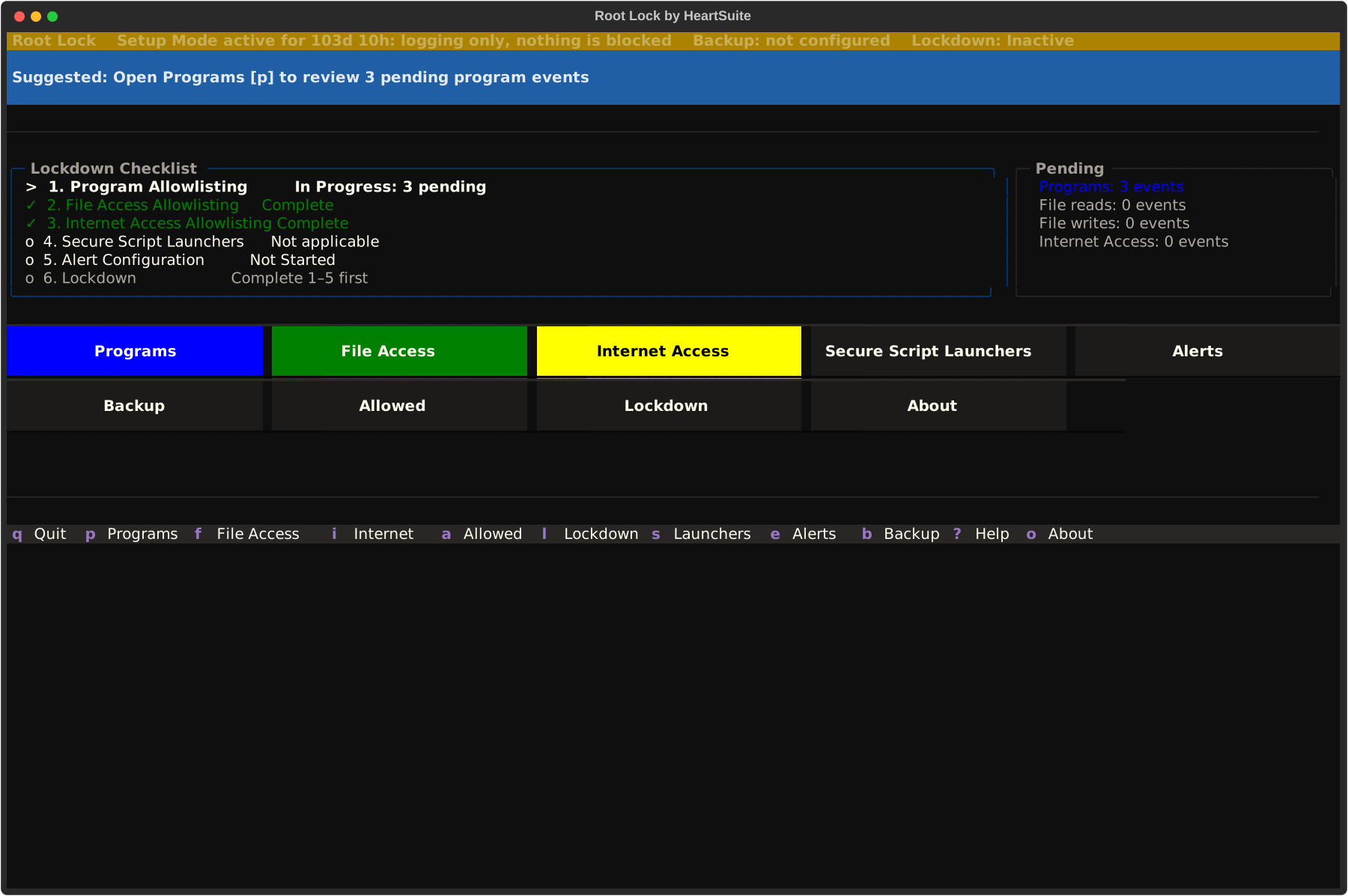
After the Dashboard appears
Initial setup already added the programs from boot and shutdown. Setup Mode logs every program that executes, every file it reads or writes, and every outbound connection.
Start the services you will keep. Compilers, probes, and extra shells that execute now become items in the review queues, and any you approve can run under Lockdown. Skip programs that should not execute in production, because they do not belong on the allowlist.
After Lockdown, new packages go through Protecting During Maintenance. Allowlisting Basics covers approve and skip.
From installation to Lockdown
The following diagram shows installation to Lockdown on one host, including the maintenance cycle.
graph TD
    A[Install Root Lock] --> B{Cloud or Local?}
    B -- Cloud --> C[Boot instance — Dashboard confirms setup complete]
    B -- Local --> D["Boot setup runs automatically — reboots between passes"]
    D --> C
    C --> E[Dashboard appears — Suggested Next Step]
    E --> F["Programs queue — approve programs"]
    F --> G["Script Launchers — if applicable"]
    G --> H["File Access queue — approve file access"]
    H --> I["Internet Access queue — approve connections"]
    I --> J["Configure alerts"]
    J --> K["Activate Lockdown"]
    K --> L["YES — probe reboot, then seal reboot"]
    L --> M{Maintenance needed?}
    M -- Yes --> N["Maintenance [m] — console unseal, then SSH in Setup"]
    N --> K
    M -- No --> O[System secured]

    style A fill:#eee,stroke:#888
    style B fill:#eee,stroke:#888
    style C fill:#eee,stroke:#888
    style D fill:#eee,stroke:#888
    style E fill:#eee,stroke:#888
    style F fill:#eee,stroke:#888
    style G fill:#eee,stroke:#888
    style H fill:#eee,stroke:#888
    style I fill:#eee,stroke:#888
    style J fill:#eee,stroke:#888
    style M fill:#eee,stroke:#888
    style N fill:#eee,stroke:#888
    style K fill:#d4f4dd,stroke:#2a7a40
    style L fill:#d4f4dd,stroke:#2a7a40
    style O fill:#d4f4dd,stroke:#2a7a40
Activating Lockdown
Complete remaining allowlisting in Setup Mode before activating Lockdown. Initial setup already added startup and shutdown programs. Anything still waiting in the review queues will be blocked under Lockdown.
Activating Lockdown shows an allowlist summary and a precondition checklist. Type YES (case-sensitive) to confirm. That starts a probe reboot; a second reboot applies the seal. See Lockdown for the activation flow.
After Lockdown, the startup script re-engages the seal on every Root Lock kernel boot.
Maintenance in Lockdown
To unseal a locked allowlist, open Maintenance ([m]) from the Dashboard. After the seal is applied, reboot from a physical or serial console and select Maintenance: unseal and return to Root Lock. SSH is not enough for that GRUB pick. The seal lifts automatically and you return to Setup Mode, then log in over SSH to install packages, edit files, and review new activity. Lock down again when the change is done.