Every maintenance window is an attack window
Setup Mode logs but stops blocking; the maintenance kernel unloads Root Lock. How to patch after Lockdown without leaving a hole.
Overview: Every maintenance window is an attack window. In Setup Mode the kernel logs but stops blocking. On the maintenance kernel, Root Lock by HeartSuite is not loaded at all.
These guides cover how to make changes without leaving a hole an attacker can use. The Dashboard shows the current protection state — including Lockdown status — and the Suggested Next Step throughout maintenance.
Maintenance is a time period during which you temporarily step out of Lockdown to make changes, not a separate mode: Root Lock has two modes, Setup Mode and Lockdown.
During maintenance you either switch to Setup Mode (the kernel logs but stops blocking) or boot the maintenance kernel (Root Lock is not loaded). The Dashboard’s Maintenance ([m]) detects whether the immutable seal is active and opens the matching path.
Installing packages, applying patches, and editing configuration happen in Setup Mode once the window is open — that is where blocking is off and logging stays on. After the first Lockdown, opening that window takes a console GRUB pick: Maintenance: unseal and return to Root Lock. The seal lifts automatically and you land back in Setup Mode on the Root Lock kernel. A one-reboot switch without the GRUB pick applies only when the strip already says Lockdown not applied.
Distro errata and application updates install in Setup Mode, on the remediation SLA in your policy or contract. For a kernel CVE whose code is compiled out, the Root Lock kernel stays as shipped while apt and dnf install the OS packages. After the packages land, review the queues and lock down again, because leaving Setup Mode open is the hole. A scanner finding whose exploit only gets an attacker as far as a step Lockdown refuses can wait for the standard change window your policy names; you file that exception in the scanner with its own expiry. See Scanner deadlines.
- Seal not applied. Type
YES and reboot once. You stay on the Root Lock kernel in Setup Mode, with no GRUB pick. - Seal applied (the usual path after the first Lockdown). Unsealing requires physical or serial-console access. Reboot and select Maintenance: unseal and return to Root Lock; if a boot menu password was set before Lockdown, that entry asks for it, while the everyday Root Lock boot does not. That boot is the maintenance kernel, which runs
HS_unlock.sh and then returns you to Setup Mode on the Root Lock kernel — two reboots before the window is open. Starting or stopping sshd on the Root Lock kernel does not clear the seal, so the console step cannot be replaced by SSH. Once you are back in Setup Mode, installs and edits run over SSH. A host left on the stock kernel returns to Root Lock at the next reboot, because the GRUB default stays Root Lock.
The Maintenance grid button is shown in Lockdown. Keyboard [m] also works in Setup Mode after you have unsealed.
Which change is this?
Installing packages, replacing program files, and updating Root Lock itself are different jobs, and they take different paths out of Lockdown.
| Situation | Path |
|---|
| OS packages, configuration, replacing program files | Unseal, then work in Setup Mode — Protecting During Maintenance |
| Root Lock kernel and Dashboard | Unseal if sealed, then one stock boot — Updating Root Lock |
| Many hosts already in Lockdown | Reprovision from an updated image rather than opening a console on every node — Enterprise Adoption Guide |
| A scanner finding with a deadline | When the exploit only gets an attacker as far as a step Lockdown refuses, file the exception and patch in the standard change window. Scanner deadlines. |
In this section
- Scanner deadlines — Which findings can wait for the standard change window, and how to file the exception with its own expiry.
- Protecting During Maintenance — Unseal from the console after Lockdown, because SSH cannot make the GRUB pick, then install or edit over SSH in Setup Mode. Ansible can run after the window is open; it cannot lift the seal.
- File Backup and Versioning — Automatic versioned backups on the Root Lock kernel. Under Lockdown the kernel is intended to keep other programs off those versions. Restore any earlier version from Backup.
- Cache Adjustment — The allowlist cache is an LRU window the Dashboard expands for you. Manual sizing is optional.
- Restricting Kernel Module Loading — Early in every boot, before the network comes up, a latch blocks new module loads until reboot. Narrowing kmod’s file grants covers boot before that point. Seal prep can auto-narrow directory grants under
/lib/modules. - Updating Root Lock — Unseal if Lockdown is applied, then run the bundle from a terminal in Setup Mode and type
YES for one stock boot; the GRUB default stays Root Lock.
1 - Keep a gate up while you change the system
After Lockdown, Maintenance unseals from the console and returns you to Setup Mode. How to shorten the unprotected period, keep a recovery path, and lock down again.
Overview: Every maintenance window is an attack window — blocking is temporarily suspended, and anything an attacker can reach during that period is unprotected.
Maintenance is the period when you temporarily reduce Root Lock by HeartSuite’s protection to install packages or edit files. The Dashboard’s Maintenance ([m]) guides you from the safety checklist through re-engaging Lockdown. Replacing the Root Lock kernel is a different path: Updating Root Lock.
After Lockdown, unsealing is the console step. You select Maintenance: unseal and return to Root Lock at the boot menu. The seal lifts automatically, and the machine returns to the Root Lock kernel in Setup Mode, so there are no flags to remove by hand on the maintenance kernel. Once you are back in Setup Mode, you install packages, edit configuration, and run Ansible over SSH.
A one-reboot switch that stays on the Root Lock kernel applies only when the strip already says Lockdown not applied, which means the seal is missing — not the usual state after a completed Lockdown.
Patch one host already in Lockdown
- Open Maintenance (
[m]) from the Dashboard while Lockdown is applied. - At the console, reboot and pick Maintenance: unseal and return to Root Lock. SSH cannot make this pick.
- You land in Setup Mode on the Root Lock kernel. Install OS and application patches over SSH.
- Review the new queue items and approve only what you will keep, because every approved entry can run under Lockdown.
- Open Lockdown (
[l]) and type YES.
Many hosts: reprovision from an updated image instead of opening a console on every node. See Enterprise Adoption Guide — Operational model for fleets and How do I patch many hosts that are already in Lockdown?.
Starting maintenance
From the Dashboard in Lockdown, select Maintenance ([m]). The Dashboard detects whether the immutable seal is active and presents the correct path.
Safety checklist
Before any mode change, Maintenance presents a safety checklist. The Dashboard auto-detects system state where possible and shows the status of each item:
- Network isolation — disable network interfaces or restrict firewall rules to prevent remote access during maintenance
- Server processes — shut down daemons (e.g., web servers) to close attack vectors
- SSH access — no root login, key-based auth only, source IP restriction
The Dashboard shows green checkmarks for items that pass and amber warnings for items that need attention. Press [c] Confirmed to proceed or [s] Skip to continue without completing the checklist. If you skip, the Dashboard displays a persistent reminder throughout the maintenance period — it does not disappear until you re-engage Lockdown.
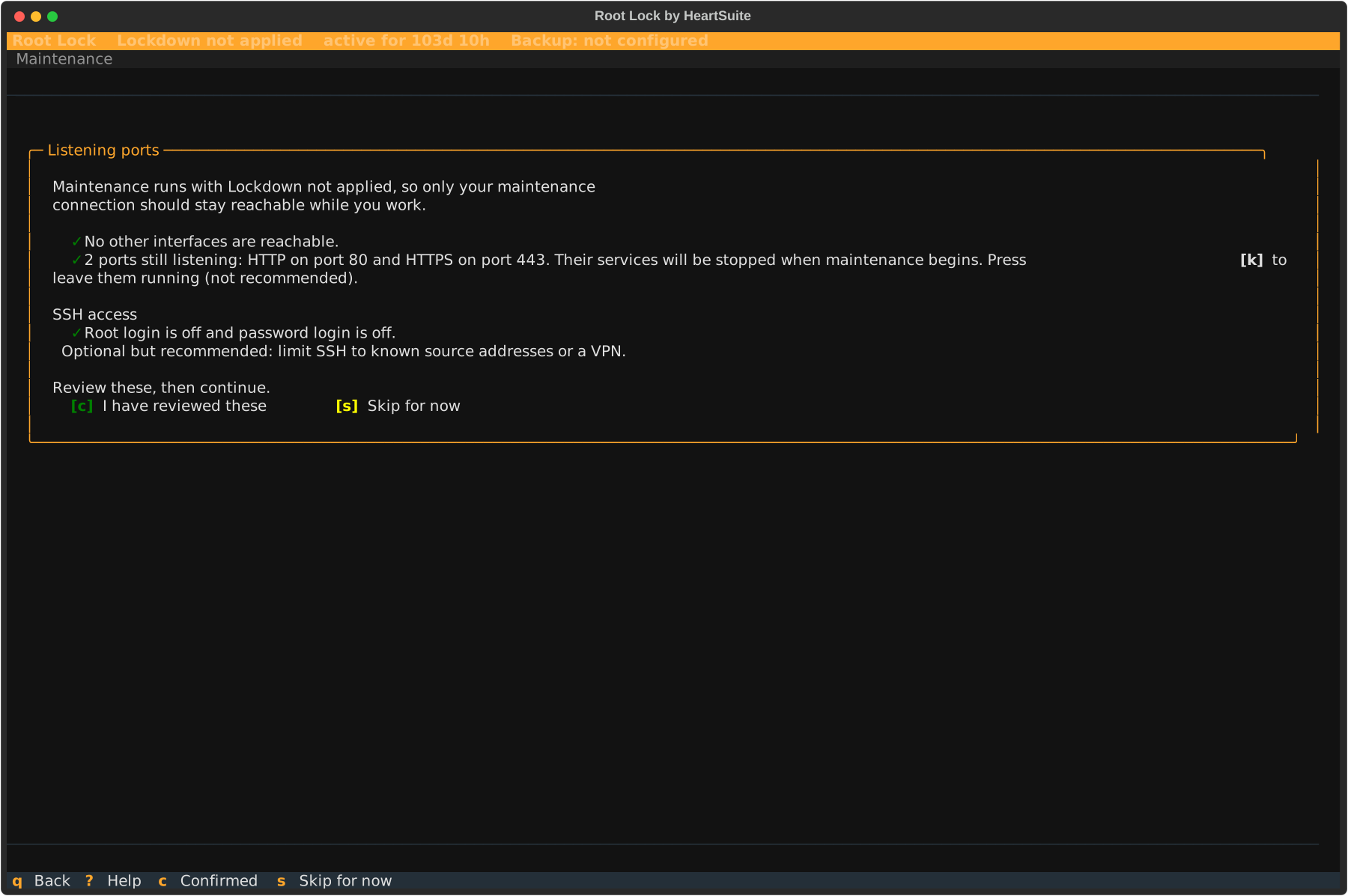
The safety checklist matters most when you are about to lift the seal, because Root Lock is not loaded during the maintenance kernel boot. Once you are in Setup Mode the Root Lock kernel is loaded again, so logging and backups continue.
After Lockdown: unseal from the console
This is the path when Lockdown is applied. Physical or serial-console access is required to pick the boot-menu entry (keyboard and monitor, a serial port, or your cloud provider’s serial console — AWS EC2 Serial Console, GCP Serial Console, Azure Serial Console, DigitalOcean Console). Confirm that access before you start. SSH cannot unseal: sshd on the Root Lock kernel never clears the chattr +i seal, which HS_unlock.sh removes on the maintenance boot that the GRUB pick starts. After the seal lifts, you install packages and edit files over SSH or with Ansible.
After the safety checklist, Maintenance tells you to reboot from the console. It does not offer [r] Reboot on this path — the boot-menu choice has to happen at the console.
- Open the console and restart the machine there.
- At the boot menu, select Maintenance: unseal and return to Root Lock. Do not select the branded Root Lock kernel. If a boot menu password was set, this entry asks for it: at the GRUB prompt, the user name is
root and the password is the boot menu password you set. The Root Lock entry does not ask. - The seal lifts automatically (
HS_unlock.sh). The machine restarts on its own and returns to the Root Lock kernel in Setup Mode. - On the serial console, press Enter when you see Press Enter to start. (see Lockdown).
The boot menu appears a second time during that automatic return. Let it be: reboot is already in motion and there is nothing to select.
You are then in Setup Mode on the Root Lock kernel:
- Blocking is off; logging and backups are on.
- New activity appears in the review queues.
- The Maintenance grid button is hidden in Setup Mode. Keyboard
[m] still opens Maintenance after you have unsealed. You can already install software and edit files.
Make your changes — install packages and edit configuration. When finished, lock down again from Lockdown ([l]). Review and approve the new queue items before you type YES. The activation flow is in Lockdown.
To replace Root Lock itself, do not wait on this kernel for the bundle. From a terminal in this Setup Mode window run bash heartsuite-install.sh and type YES. See Updating Root Lock.
If you accidentally select the Root Lock kernel at the first boot menu instead of the Maintenance entry, the Dashboard detects that and sends you back to reboot and select the correct entry.
Warning
Between selecting the Maintenance entry and the automatic return, Root Lock is not loaded, so the safety checklist is what protects the host during that interval.
Until the automatic return, the host runs ordinary Linux and ordinary attacks work against it. By default only the console reaches it: the NIC stays down on that kernel unless you chose a live or firewall route in Maintenance.
When the seal is not applied
If the strip says Lockdown not applied, Maintenance offers a switch to Setup Mode that stays on the Root Lock kernel. Type YES (case-sensitive). The Dashboard then offers [r] Reboot.
After that reboot:
- Root Lock switches from blocking to logging only
- The Root Lock kernel remains active
- Backups continue running
- The existing allowlist is preserved
- New activity is logged, not blocked — it will appear in the review queues when you lock down again
This path is for an unfinished or drifted seal, not for a host that already shows Lockdown applied.
After the window is open
Once you are in Setup Mode, SSH and Ansible can install packages and edit files on that host. The console trip is only to lift the seal.
- One host, many services. One unseal covers every program on that machine.
- Many hosts already in Lockdown. Ansible cannot lift the seal. The official
heartsecurity.root_lock role leaves mode unchanged when hs_state is unset or setup. In-place patches still need the console path on each sealed host. For a fleet, reprovision from an updated image instead — see Enterprise Adoption Guide and Central Policy. - Detaching the disk. Stopping a cloud VM and attaching its volume to another instance is hypervisor access, not a supported patch procedure. That mount is how a lost boot menu password is cleared, because the boot menu itself cannot reset it. Treat it as the same class as serial-console access: break-glass, and restrict it in cloud IAM. See Circumvention and recovery.
What to install
The maintenance window is how you add new software after Lockdown. Install the packages you will keep. Skip compilers and package-install helpers that executed only for this window unless they must stay on the host, because every entry you approve can run under Lockdown. See Allowlisting Basics.
When the change is done, review the new queue items, then lock down again from Lockdown ([l]). Do not leave the host in Setup Mode to install tools you will not keep.
Manual recovery outside Maintenance
When Lockdown makes files immutable using chattr +i, those flags are stored at the filesystem level and persist across reboots — including a reboot that reaches the maintenance kernel.
Modifying a file that was made immutable during a previous Lockdown session fails with an error such as “could not open file; errno:1.”
The console Maintenance entry runs HS_unlock.sh for you. For recovery outside the Dashboard, run HS_unlock.sh.
2 - Backups that ransomware cannot delete
Every write in a protected directory is versioned before it lands. Under Lockdown, other programs are not intended to reach those versions.
Overview: Allowlisting controls what programs can execute, but an approved program that malware takes over can still write files. Ransomware running inside an approved process can encrypt whatever that process can reach.
Modern ransomware targets backup systems first — shadow copies and backup agents are typically deleted before files are encrypted.
Root Lock by HeartSuite creates a versioned backup every time a file in a protected directory is written. Versioning runs on the Root Lock kernel in both Setup Mode and Lockdown. Backup is a recovery store, not a prevention control: it does not stop the first write.
The same holds when the attack waits. A malicious sleeper is an approved program that behaves as expected for a long time, then encrypts or overwrites files it is already allowed to write. Root Lock versions those writes too, as long as the files are in a directory you selected on Backup ([b]). HeartSuite Joint File System (HJFS) removes that condition: it versions every program data file without a directory list. See The malicious sleeper attack.
Under Lockdown, the kernel keeps other programs — including malware running as root — off those backup versions; on the maintenance kernel Root Lock is not active, so that protection does not apply. Changing which directories are protected requires a maintenance window.
Automatic versioning
Root Lock monitors the protected directories you select. When any file in those directories (including subdirectories) is written, Root Lock creates a new versioned backup before the write completes. Versioning begins from first boot, before you have reviewed a single item.
Enterprise backup tools back up on a schedule — hourly, nightly, weekly. An attack that completes between backup windows has nothing to recover from. Root Lock backs up on every write, so there is no window for an attack to fit in.
Other security tools that offer rollback on Linux — including endpoint tools with a rollback feature — rely on volume shadow copies or scheduled snapshots. The same gap exists: an attack that completes between snapshot intervals has nothing to recover from.
CVE-2024-40711 — Veeam Backup & Replication, unauthenticated RCE — shows the sharper problem: the backup tool itself is the target. An attacker who reaches a Veeam host can execute code without authentication, destroy backups, then encrypt production files. Root Lock’s backups have no running agent to exploit.
Configuring protected directories
From the Dashboard, select Backup ([b]). Backup has two tabs: Configure and Restore. Configure shows which directories are protected and when they were last versioned. By default, /home is protected.
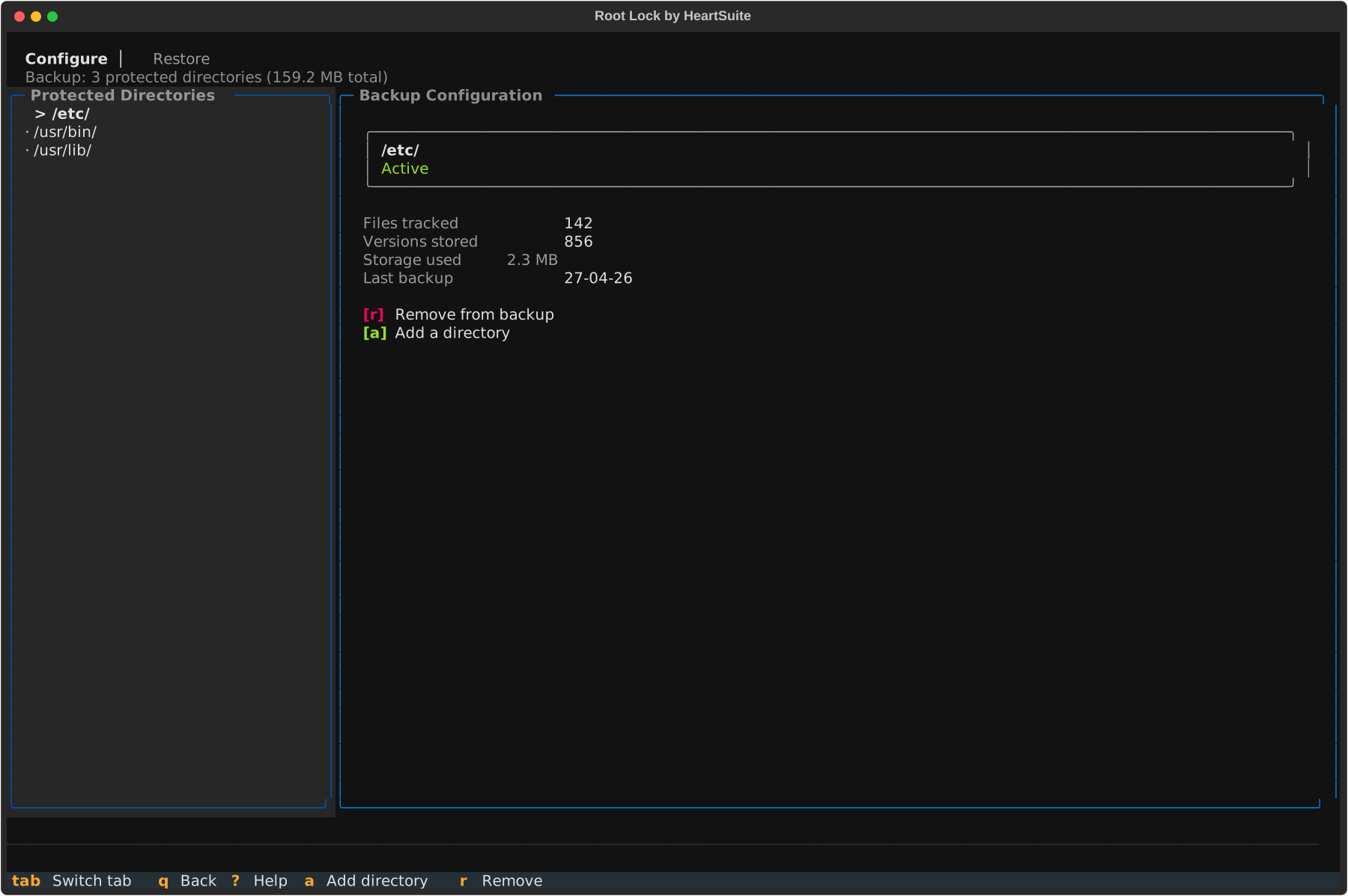
From Configure you can:
- Add a directory (
[a]) — protect additional directories (for example /var/www, /etc, /usr/lib) - Remove from backup (
[r]) — stop backing up a directory. Existing versions are retained until the retention window expires.
On Backup, [n] cancels; add a directory with [a].
Recommended directories include those containing user documents, executable files, configuration, and shared libraries. Avoid high-churn directories like log directories — backup creates a new version on every write.
Backup is optional: you can remove all directories to disable it, and Lockdown does not require it.
Restoring file versions
If a file is compromised — for example, encrypted by ransomware — Backup lets you browse version history and restore any previous version of any file in a protected directory. On the Restore tab:
- File-first (
[f]) — navigate by directory and file, then view versions of the selected file - Timeline (
[t]) — navigate by date, showing all files modified on a given day
To restore a single file, select it and choose the version to restore. Each version shows its timestamp and file size.
For ransomware recovery where many files were modified on the same date, use Timeline ([t]), press [d] to filter by date, review the affected files, and press [b] to batch restore all of them in one operation.
Lockdown and backup
When Lockdown is active, the backup configuration file is sealed — no user or program, including root, can add or remove directories. This prevents an attacker who compromises a running process from silently disabling backup. To change the backup configuration, enter a maintenance period first (see Protecting During Maintenance).
Backup encryption
Root Lock backup files are versioned filesystem copies. They are not encrypted by Root Lock. If your environment requires data-at-rest encryption — for example, to meet GDPR, HIPAA, or PCI DSS requirements — configure full-disk encryption (dm-crypt/LUKS) at the OS level. LUKS encryption covers the backup files automatically, since they reside on the same filesystem as the rest of the host.
CLI access for scripting and automation
For scripting and automation that runs without the Dashboard:
# hs-backup-config-manager list
# hs-backup-config-manager add -d /var/www
# hs-backup-config-manager del -d /home
# hs-version-manager list /home/user/document.txt
# hs-version-manager replace /home/user/document.txt <token>
For normal use, prefer the Dashboard’s Backup ([b]), which lets you browse versions by file or by date before you restore.
3 - When 255 allowlist slots is not enough
The Dashboard expands the kernel allowlist cache up to 255. Larger allowlists stay valid; the cache keeps the most recently used entries.
Overview: Root Lock by HeartSuite caches allowlist entries in kernel memory for lookup speed. The cache is an LRU window: its size sets how many entries stay in fast kernel memory, while the number of programs you may approve is unaffected. The Dashboard expands that window toward your allowlist size, up to 255 entries. Allowlists larger than 255 stay valid, and the kernel evicts the least recently used cache slots.
Because the Dashboard sizes the cache for you, manual sizing is optional, and you can let the allowlist grow past 255 without pruning it.
Automatic cache expansion
On startup and every state refresh, the Dashboard compares the size of your allowlist against the current kernel cache size. If the allowlist is larger, the Dashboard silently expands the cache — up to 255 entries. The minimum cache size is 10.
This runs in the background on the Dashboard’s normal 60-second refresh cycle. You do not need to invoke a CLI tool or change a setting.
When the allowlist is larger than 255
Auto-expansion stops at 255. Entries beyond that remain in force, and the kernel keeps the 255 most recently used in the cache.
Pruning unused programs in Allowed ([a]) is good hygiene rather than a requirement: after you remove entries, the next Dashboard refresh can shrink the working set the cache has to hold.
The Dashboard shows no warning when the allowlist grows past the 255-entry cache.
CLI access for scripting and automation
For scripting and automation that runs without the Dashboard, set the cache to a size between 10 and 255 with the on-disk tool:
# /.hs/sys/hs-APO-cache-size 128
Some docs and older notes call this tool hs-cache-size, its glossary name; the binary on disk is hs-APO-cache-size.
For normal use, let the Dashboard size the cache, because it re-checks the allowlist size on every refresh.
4 - Narrow kmod's file grants before Lockdown
Early in every HeartSuite-kernel boot, a latch refuses a later modprobe until reboot. This page is how you narrow kmod’s file grants before Lockdown seals them.
Overview: Root Lock blocks kernel module loading with a latch: a kernel setting that, once switched on, stays on until the next reboot.
The latch is heartsuite-kernel-latch.service. It runs early in every Root Lock kernel boot, Setup Mode included, before the network is configured and before sshd starts. It first loads the netfilter modules the firewall needs. Then it sets kernel.modules_disabled=1, and kernel.kexec_load_disabled=1 where that node exists. From then until reboot, a later modprobe stays refused (init_module, finit_module, and delete_module). The latch script does not unload modules already in memory. The kernel setting does the blocking, not a Root Lock check.
HS_lockdown.sh writes the same settings again, where the node exists, in case the latch service is masked. OpenRC systems have no latch service and get those writes only when Lockdown is applied.
HeartSuite is not on yet while that oneshot runs, so the program allowlist is not what stops module loads in that window. This page is how you narrow kmod’s file grants before Lockdown seals the allowlist.
If kmod has no directory grant under /lib/modules or /usr/lib/modules, you can skip the rest of this page.
When kmod is allowlisted
Some hardware configurations load drivers or filesystem modules at startup. The latch runs after udev’s initial device scan, systemd-modules-load.service, the binfmt_misc mount, and ufw.service (when enabled). Those early loads are that boot path and the latch’s own netfilter preload.
A kmod program that holds a directory grant on /lib/modules or /usr/lib/modules can load any module present in that tree. Narrow those grants to the module paths kmod needs. An allowlisted kmod with a directory read under /lib/modules can open module files that were never observed during Setup Mode. The latch’s own netfilter preload is a fixed list. File grants do not add to it.
Narrow file access before Lockdown
Do this before you type YES on Lockdown, because once Lockdown is active the allowlist entries are sealed and changing them takes a maintenance window.
When kmod’s startup activity appears in the File Access queue ([f]) during Setup Mode, approve individual .ko paths rather than directory-level access. Approving a directory grants read access to everything under it — including modules not present during observation.
If directory grants under /lib/modules are still present when you open Lockdown ([l]), seal prep auto-narrows them. That panel is advisory and does not ask for YES; pressing [m] there undoes the narrowing rather than opening Maintenance. Under Lockdown the same inventory is read-only.
Handle any grants left after auto-narrowing in Allowed ([a]) or File Access ([f]); the Dashboard, not a CLI, is the normal path.
After narrowing, reboot and confirm the machine starts with no unexpected kmod denials in the review queues. Then activate Lockdown ([l]).
What stays sealed after Lockdown
After Lockdown engages:
- Allowlist entries are sealed — kmod’s entry cannot be modified while Lockdown is active.
- Startup scripts are sealed — system-wide shell configuration, systemd unit directories, and cron. Attackers cannot insert scripts that would run before Lockdown re-engages on the next boot and expand kmod’s permissions.
After the latch, a later modprobe stays refused. The allowlist and kmod’s file grants are a separate control, and Lockdown seals them.
Per-user shell profile coverage
Lockdown seals system-wide shell configuration — /etc/profile, environment defaults, and cron — preventing an attacker from planting scripts that run at the next boot and expand kmod’s permissions before Lockdown re-engages. A script that widens kmod’s file grants still cannot load a module once the latch has run. Per-user profile files (~/.bash_profile, ~/.bash_login, ~/.profile, ~/.bashrc, ~/.inputrc) are not covered automatically because the correct set depends on your user configuration.
If specific user accounts need that coverage, do it in Setup Mode (before the first Lockdown, or after unseal). The Dashboard has no per-user profile picker, so edit the scripts: uncomment those users’ profile lines in HS_lockdown.sh and the matching reverse lines in HS_unlock.sh. Then lock down from Lockdown ([l]).
5 - Apply an update without dropping Lockdown blindly
Unseal if Lockdown is applied, then run the bundle from a terminal in Setup Mode. Type YES to take one stock boot. The default stays Root Lock. You land in Setup Mode on the new kernel.
Overview: A Root Lock by HeartSuite update is delivered as a single self-extracting bundle (heartsuite-install.sh) that replaces the kernel and its userspace tools in one operation.
What an update changes
- The Root Lock kernel
- HeartSuite userspace tools (
activate_HS, lockdown_HS, Secure Script Launchers, setup scripts) - The Dashboard files under
/opt/heartsuite/ - GRUB configuration, so the new kernel becomes the default boot target
It does not wipe user data, existing allowlist entries, or backup files. A complete overwrite still re-runs first-run setup (extra reboots) before the Dashboard returns. After the new kernel is up, new programs appear in the review queues for you to approve.
Why the update needs a stock boot
The installer will not overwrite Root Lock while that kernel is booted, which it checks with uname -r. Setup Mode still runs the Root Lock kernel, so you can copy the bundle, install packages, and edit configuration there, but the update itself finishes on a different boot.
You can also start bash heartsuite-install.sh there from a terminal. The installer asks you to type YES (case-sensitive), which sets the next boot only to the original distro kernel (stock) or Maintenance, keeps Root Lock as the default, and continues the update after that boot. You do not pick a menu entry, and you do not run the installer a second time.
If the session is not a terminal — for example curl … | sudo bash — the installer prints a one-shot command such as grub-reboot '…' && reboot for this machine instead of asking YES. Copy that command exactly rather than typing a boot entry number of your own. After that boot, run bash heartsuite-install.sh again. If the installer cannot name an entry, it tells you to open the console and choose stock or Maintenance at the boot menu.
The first-install command curl -fsSL https://get.heartsecsuite.com/get-heartsuite.sh | sudo bash is for a host that does not yet have Root Lock. On a host already running the Root Lock kernel it downloads the bundle and then follows the non-terminal path above.
If Lockdown is applied (the strip says Lockdown applied), unseal first. The installer cannot set the next boot while /boot is sealed.
- Already in Setup Mode on the Root Lock kernel. Skip Unseal. Place the bundle, verify the checksum, and run
bash heartsuite-install.sh from a terminal. Type YES. - Already on the original distro kernel or the maintenance kernel, and the strip does not say Lockdown applied. Skip Unseal and skip
YES. Run the installer. - On the maintenance kernel but the strip still says Lockdown applied. The immutable flags are still on the files. Unseal first.
On the stock or maintenance boot Root Lock is not loaded, so it does not block programs, log, or take backups: that boot is ordinary Linux. By default the NIC stays down on that boot unless Maintenance already chose a live or firewall route; this update path uses that live route, over SSH, after the console GRUB pick Maintenance: unseal and return to Root Lock. Choose a time when that gap is acceptable.
Before you begin
- Unseal first if Lockdown is applied. From the Dashboard, open Maintenance (
[m]) and follow the sealed path in Protecting During Maintenance. You must land in Setup Mode before the installer can set the next boot. - Verify the bundle. Compare the SHA-256 of
heartsuite-install.sh against the published checksum before running it. - Physical or serial-console access if the installer cannot name a boot entry, and for recovery if the new kernel does not boot. Being in Setup Mode alone does not require the console.
Update procedure
Place heartsuite-install.sh and heartsuite-install.sh.sha256 on the system, typically by scp into /root/. In Setup Mode that copy is allowed. Under Lockdown it may be denied, and not only by the allowlist: HS_lockdown.sh also sets chattr +i on /root. Unseal first.
If Lockdown is applied, open Maintenance ([m]) and complete the unseal path. You should be in Setup Mode on the Root Lock kernel before the next step.
Verify integrity:
sha256sum -c heartsuite-install.sh.sha256
Expected output: heartsuite-install.sh: OK
Log in as root over SSH or the serial console (AWS EC2 Serial Console, Linode LISH, Hetzner, and others). On failure, inspect /var/log/heartsuite/install.log on the serial console.
Run the installer from that terminal:
bash heartsuite-install.sh
If uname -r still names a Root Lock release, type YES when asked. The machine takes one stock or Maintenance boot and the installer continues from disk. The default stays Root Lock. If you are already off the Root Lock kernel, there is no YES step.
The installer applies the update and, by default, reboots into the new Root Lock kernel. You land in Setup Mode.
If new programs appear, they show in the review queues. Approve them through the Dashboard, then re-engage Lockdown ([l]) if it was active before the update.
Many hosts
The in-place bundle is per host. After Lockdown, each sealed host still needs the console unseal before the installer can set the next boot, because /boot is sealed.
For many locked hosts, reprovision from an updated pre-configured image instead of running the bundle on each live machine. That path is equivalent for support when the image contains a published bundle. See Kernel Support Policy and Enterprise Adoption Guide.
If the update fails
If the new Root Lock kernel does not boot, select the previous kernel from the GRUB menu. Physical or serial-console access is required for this step. Selecting a kernel other than Root Lock, or editing the kernel line, asks for the boot menu password if one was set (none is set by default). The normal Root Lock entry does not ask.
Both the previous Root Lock kernel and the maintenance kernel remain available as recovery entries. Contact HeartSuite support at support@heartsecsuite.com and include the contents of /var/log/heartsuite/install.log in your message — we’re happy to help you recover.
6 - Defer the scanner findings Lockdown already stops
Which findings can wait for the standard change window under Lockdown, which stay on the patch date, and how to file the exception in the scanner you already run.
Overview: Under Lockdown, some critical scanner findings can wait for your standard change window. Those are the findings where exploiting the bug only gets an attacker as far as a step Root Lock refuses: running a dropped binary, opening a file the vulnerable program was never granted, or connecting to a destination outside its network allowlist. A finding the attacker can complete inside the program’s existing grants — reading files it already reads, sending to a destination it already reaches — stays this week’s work. You record the deferral as one exception rule in the scanner you already run. That rule changes the scanner’s score, report, and remediation queue until it expires. It does not change the patch date in your policy or contract.
Which findings can wait
A finding can leave the active queue when the attacker’s next step after the exploit is something Lockdown already stops:
- The next step is a program with no allowlist entry. The kernel matches the path, so a copy of an allowed binary at a new path is a new program with no entry.
- The next step is a file the program was not granted.
- The next step is a destination the program was not granted.
The vulnerable code is still on the host, so file these with a compensating-control or accepted-risk reason — the reason column in Record the reason in that scanner — and an expiry. A false-positive reason records that the vulnerability is absent, which is not true here, and the expiry is what brings the finding back for the patch.
In the comment, name the step Lockdown stops: a program with no allowlist entry, a file that program was not granted, or a destination it was not granted. A privilege-escalation finding whose root process already has an allowlist entry is not, by itself, a reason the patch can wait. Where your policy sets the standard change window at 60 or 90 days for work it does not rank critical, set the expiry to that window.
The deferral holds only while the host is in Lockdown. In Setup Mode the kernel logs but stops blocking until you return to Lockdown, so plan maintenance windows on these hosts with the open findings in mind. See Protecting During Maintenance.
Which findings stay on the patch date
Two kinds of finding keep the patch date whatever the exploit’s next step: a known-exploited finding on the CISA Known Exploited Vulnerabilities list, and anything your policy ranks critical.
The rest stay because the attack completes inside what the program is already allowed to do, so there is no refused step for Lockdown to stop:
- In-process bugs, on data the program already reads
- Kernel CVEs whose code is in the kernel you boot
- Injection inside an allowlisted process
- Denial of service
- An already-permitted destination
- The vulnerable app’s own files
An exception for one of these is a rule you file on your own policy’s terms, not on Lockdown’s. Lockdown still refuses the attacker’s next unapproved program, file, or destination on those hosts, so the patch closes the bug and the allowlist bounds what the bug can reach before it lands.
Kernel CVEs for code that is not in the kernel
The false-positive or not-affected reason is for one case: a kernel CVE whose code is absent from the kernel you boot. Record the config gate that leaves it out on the rule. The catalog of gates and the CVEs each one covers is Kernel Security Transparency.
On the 6.18 kernel, the BPF syscall is off, so there is no eBPF program to load. apt and dnf update the OS packages and leave the Root Lock kernel as shipped, so a package update does not change which kernel code is present.
A scanner that flags a kernel CVE from the version string alone follows CVE Hygiene for Scanners.
File the exception
File the rule on the asset group, tag, or range those hosts already belong to, and put the reason, the comment, and the expiry on that rule. If the scanner asks for an approver or a review date, record those on the same rule.
The exception expiry and the remediation SLA are two different dates. The expiry is how long the scanner treats the finding as handled. The SLA is the patch date in your policy or contract, and the exception does not move it. A policy that requires installs within seven days still requires them within seven days — the exception rule is what records that this finding is allowed to wait longer.
Keep evidence for the exception window
Keep a record with the rule that shows Lockdown held for the exception’s dates:
- If those hosts already ship syslog, save a search on identifier
heartsuite for those dates. It returns the denials and alerts. - If a monitor already polls
status.json, its history for lockdown and daemon_ok covers the same dates. - On one host, when the shipper is down,
journalctl -t heartsuite --since and --until cover those dates.
See SIEM Integration.
Record the reason in that scanner
Each link goes to the vendor’s own article. Menu labels come from that article and can change between releases. Where an article names a 30-day or 90-day field, that field is the exception expiry, not your remediation SLA.
| Scanner | Reason | What changes | Documentation |
|---|
| Rapid7 InsightVM | Compensating Control | Drops the finding from the risk score and from reports. Expiry is an optional date. | Working with vulnerability exceptions |
| Tenable Security Center | Accept Risk | Hides the finding from a search that excludes Accepted Risk. Comment is free text. Expiry is a date you select. | Manage Accept Risk Rules |
| Tenable Security Center | Recast Risk | Writes a new severity onto matching findings. Expiry is a date you select. | Manage Recast Risk Rules |
| Tenable Vulnerability Management | Accept, or Recast | Accept hides the finding. VPR, AES, and CES stay as scored. Recast changes the visible severity. A rule can omit the expiry. | Recast |
| Tenable Nessus | Plugin rule | Hides a plugin in the results, or changes its severity. An expiration date is one of the fields. | Plugin Rules |
| Qualys VMDR | Ignore | Takes the finding off the actionable-issue list. | Want to ignore a vulnerability? |
| Microsoft Defender Vulnerability Management | Third party control, or Alternate mitigation | Takes the finding out of remediation work. Those two reasons can lower the exposure score on a recommendation exception. You set the duration when you create the exception. A longer window is a new exception. | Exception reasons and Create an exception |
| Greenbone | Override | Changes the shown severity when the report filter Apply Overrides is on. Active is on, off, or a number of days. | Using Overrides and False Positives |
Wiz and Orca, which How Root Lock Compares names alongside these scanners, publish no public exception article, so they are not in the table.
Image and dependency scanners
An ignore in these tools changes that tool’s report, the same way an exception does in a host scanner.
| Scanner | What you record | Documentation |
|---|
| Snyk | Not vulnerable, Ignore temporarily, or Until fix is available. A security policy can mark won’t fix or not vulnerable. | Ignore issues and Security policy actions |
| Trivy | An ignore file. The statement is free text. | Filtering |
| Grype | An ignore rule, or a VEX status on that finding. | Filter scan results |
Backports, tailoring, and intrusion prevention
These cover a backported fix, OpenSCAP tailoring, or intrusion prevention alongside the scanner rule.