Blocked, wrong kernel, or silent fail?
Overview: When something stops working under Lockdown, the cause is usually a missing allowlist entry, a different mode or kernel than expected (Setup Mode vs Lockdown, immutable seal, or the maintenance kernel), or a kernel issue.
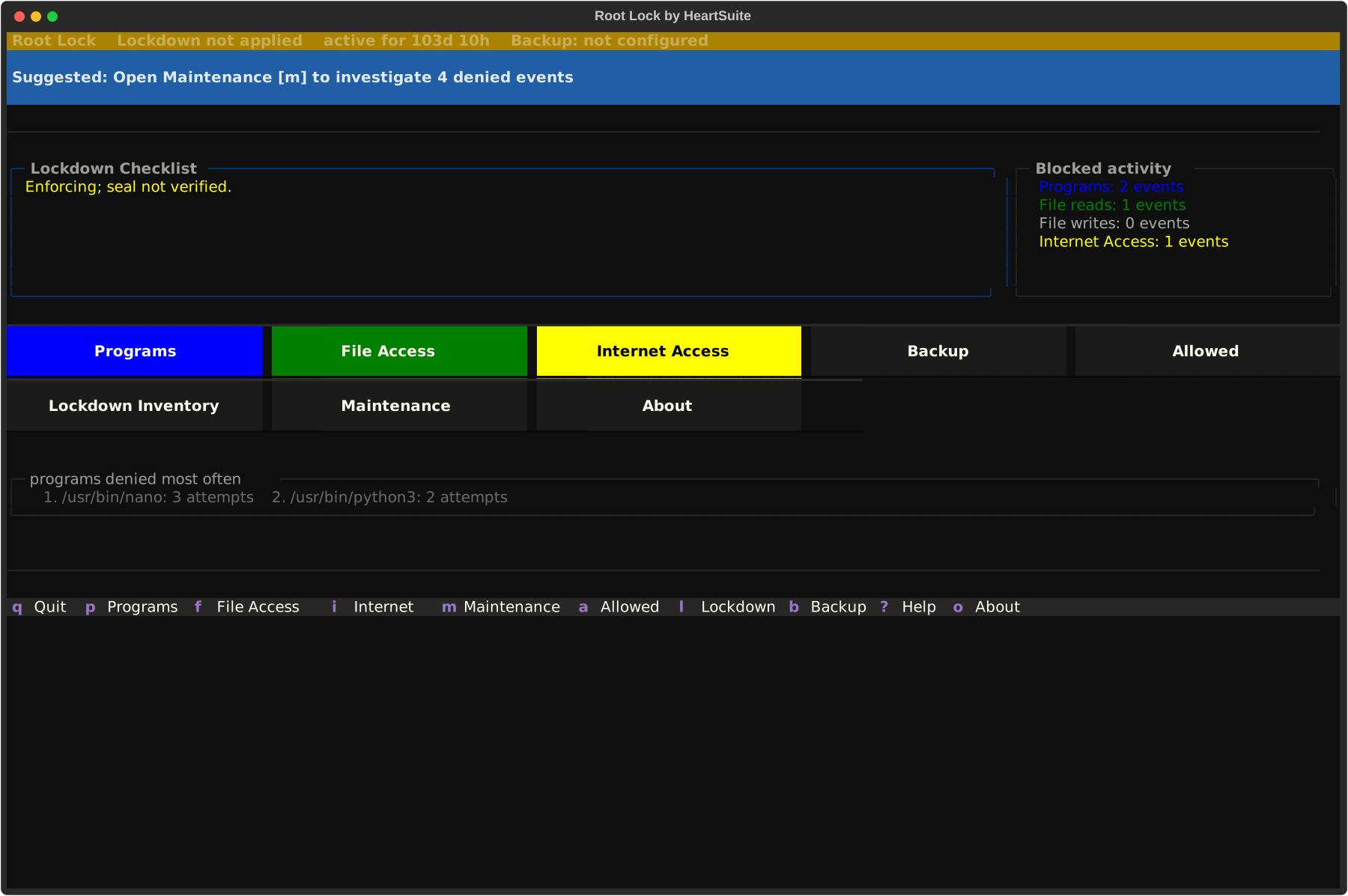
Root Lock by HeartSuite shows which one on the Dashboard. The indicator at the top shows the current protection state, and the Suggested Next Step tells you what to do.
Installer and Dashboard logs live under /var/log/heartsuite/. Use the provider serial console to cat them. AWS Get system log is a buffered snapshot of that serial output, separate from CloudWatch. CloudWatch, Cloud Logging, and Log Analytics need the platform logging agent plus IAM, which Root Lock does not install. Paths and the three cloud surfaces are listed in Appendices → Log files.
Where to start
Start with the Dashboard, because it already counts and groups what was blocked by category. Before checking log files, review:
- Protection state (indicator at the top): Shows the current protection level: “SETUP MODE”, “LOCKDOWN — immutable seal not applied”, “Lockdown applied”, or “maintenance kernel”. “Lockdown applied” is Lockdown with the immutable seal.
- Status line at the bottom: Shows the kernel indicator (“Root Lock” or “maintenance kernel”), current mode with uptime, and lockdown status.
- Pending/Denied counts: In Setup Mode, these are pending items awaiting approval. In Lockdown, these are denied actions that may need allowlisting.
- Suggested Next Step: Provides a single, actionable recommendation based on the current system state.
If you suspect a program is being blocked, check the Dashboard first. Denied items appear as counts on the Dashboard, grouped by category (Programs, File reads, File writes, Network). For example, if nano is blocked from executing, the Dashboard shows Programs: 1 denied and the Programs queue ([p]) presents it with full metadata for approval.
Log management
Root Lock logs activity and presents it through the Dashboard’s three review queues: Programs ([p]), File Access ([f]), and Internet Access ([i]). The Dashboard shows pending counts for each queue and groups items by category, so you always know what needs attention. Maintenance ([m]) provides guided workflows for common maintenance tasks.
The review queues are how you see and resolve what needs attention. The underlying activity log is a temporary buffer — once all three review queues are empty and Secure Script Launchers is no longer pending, the Dashboard clears the log on its next refresh, without manual action.
For compliance, SIEM integration, or long-term retention, enable Syslog on Alert Settings → Fleet. Denial lines and aggregated alerts then go to the journal under ident heartsuite (alert lines use the message prefix heartsuite-alert:). Approvals are in /var/log/heartsuite/allowlist-audit.log. See SIEM and Fleet Integration. Formal compliance evidence is covered in the SOC 2 and compliance reference documents.
Allow several days to a week of observation in Setup Mode, because systemd timers, cron jobs, and infrequent services appear in the review queues only when they run.
Kernel log
The Dashboard’s review queues automatically collect entries from both the Root Lock activity log and the kernel log. During normal operation, you do not need to read dmesg directly.
The kernel log is useful for advanced troubleshooting in three situations: a program fails but the Dashboard shows zero pending or denied items for it; the Root Lock activity log has been cleared or rotated; or you need to correlate Root Lock entries with other kernel messages:
dmesg | grep HEARTSUITE
The Dashboard presents the same information with metadata enrichment and grouping, but only on the Root Lock kernel. On the maintenance kernel the TUI is Maintenance standalone, and the strip reads maintenance kernel: Root Lock not active No blocking · No logging · No backups. Express return, which lands you in Setup Mode on the Root Lock kernel, is meant to get you off that kernel quickly.
Nested virtual machines without hardware virtualization
The Local Path command is the same on a physical host and on a full VM. If you created a virtual machine inside a VPS or cloud guest that has no /dev/kvm, the installer stops at the start. Install Root Lock on the outer machine, or use a host that provides hardware virtualization. See Bare metal, virtual machines, and nested VMs.
Reporting issues
If you encounter a product bug, email support@heartsecsuite.com with your Root Lock version, kernel version (uname -r), the protection state shown at the top of your Dashboard, and steps to reproduce. For documentation issues, use heartsuite-docs issues. For security vulnerabilities, email support@heartsecsuite.com — do not use public issue trackers.
Feedback
Was this page helpful?
Glad to hear it! Please tell us how we can improve.
Sorry to hear that. Please tell us how we can improve.